Validation Summary Reports
The Validation Summary section displays the list of modules for which data import has been performed. Users can view the data import status of the uploaded file and download Validation Summary Reports specific to modules to view the Validation status of the file.
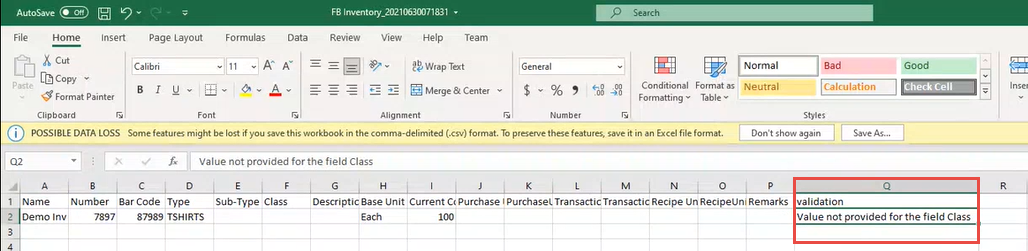
The downloaded .CSV file contains an additional Validation column towards the end of the table that displays the reason for data import failure for a specific row. For example, Value not provided for the field Class
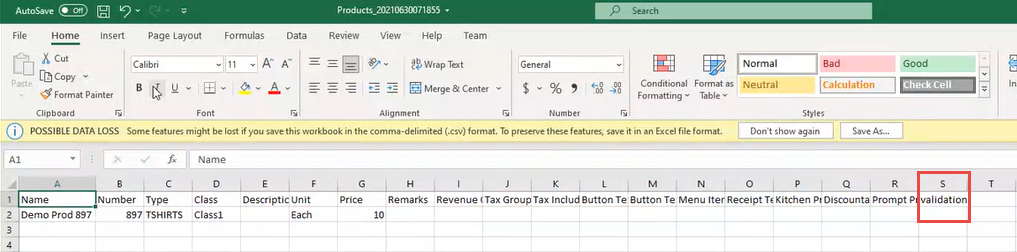
The Validation column appears blank if the data against that row is imported successfully.
Users can view Validation Summary Reports based on the following upload types:
-
Single - selecting this option displays the Module field that allows users to select the preferred module from the drop-down list.
-
Multiple - selecting this option hides the Module field.
The following details are displayed on the Validation Summary Reports page:
|
Field |
Description |
|---|---|
|
Module Name |
The name of the module associated with the imported file. This value appears as Multiple prefixed with an Expand (+) icon if the file upload type is selected as Multiple. |
|
Status |
The data import status of the imported file. Available status includes:
|
|
Start Date |
The date and time the import job run was initiated. |
|
End Date |
The date and time the import job run ends. |
|
Logs |
Click the download icon to download the log file for the selected module. |
|
Actions |
The download link of the Validation Summary Report corresponding to the module. The value in this column appears as Show Error if the import status displays BadRequest. This occurs due to the mismatch between columns in the uploaded file and columns configured in the workflow in Eatec. Clicking on Show Error displays the following message: Columns in the uploaded file do not match with the expected columns. |
Downloading Validation Summary Reports for Single Upload
Users can download validation summary reports for single file upload by performing the following steps:
Under the Validation Summary section, enable the upload type as Single if the flag displays Multiple. By default, Single is enabled. This displays the validation summary reports with respective module names.
Click on the preferred module to see the summary list. The Validation Summary for the selected module page appears.
Click the Close icon to close the Validation Summary page.
Under the Actions column, click Download corresponding to the preferred module name to download the Validation Summary Report.
Downloading Validation Summary Reports for Multiple Upload
Users can download validation summary reports for multiple file upload by performing the following steps:
Disable the Single flag. This displays the Validation Summary Reports with module names as Multiple prefixed with an Expand icon.
Click the Expand icon to view the files associated with the selected multiple upload.
Under the Actions column, click Download corresponding to the preferred file to download the zip file containing the validation summary reports of the associated modules.