Saved EDI Invoices
Agilysys Eatec enables users to view supplier EDI 810 invoices as read-only reference records. These invoices are for reference only and do not create or impact any transactions.
Users can perform the following actions:
-
View saved EDI invoices and add remarks without modifying the invoice data.
-
Use EDI invoice data to prefill fields and identify quantity and cost variances.
-
Receive email notifications for any EDI import failures.
Users can view the saved invoices by performing following steps:
Click Procurement ➜ Saved EDI Invoices. The Saved EDI Invoices page appears with the All Saved EDI Invoices section.
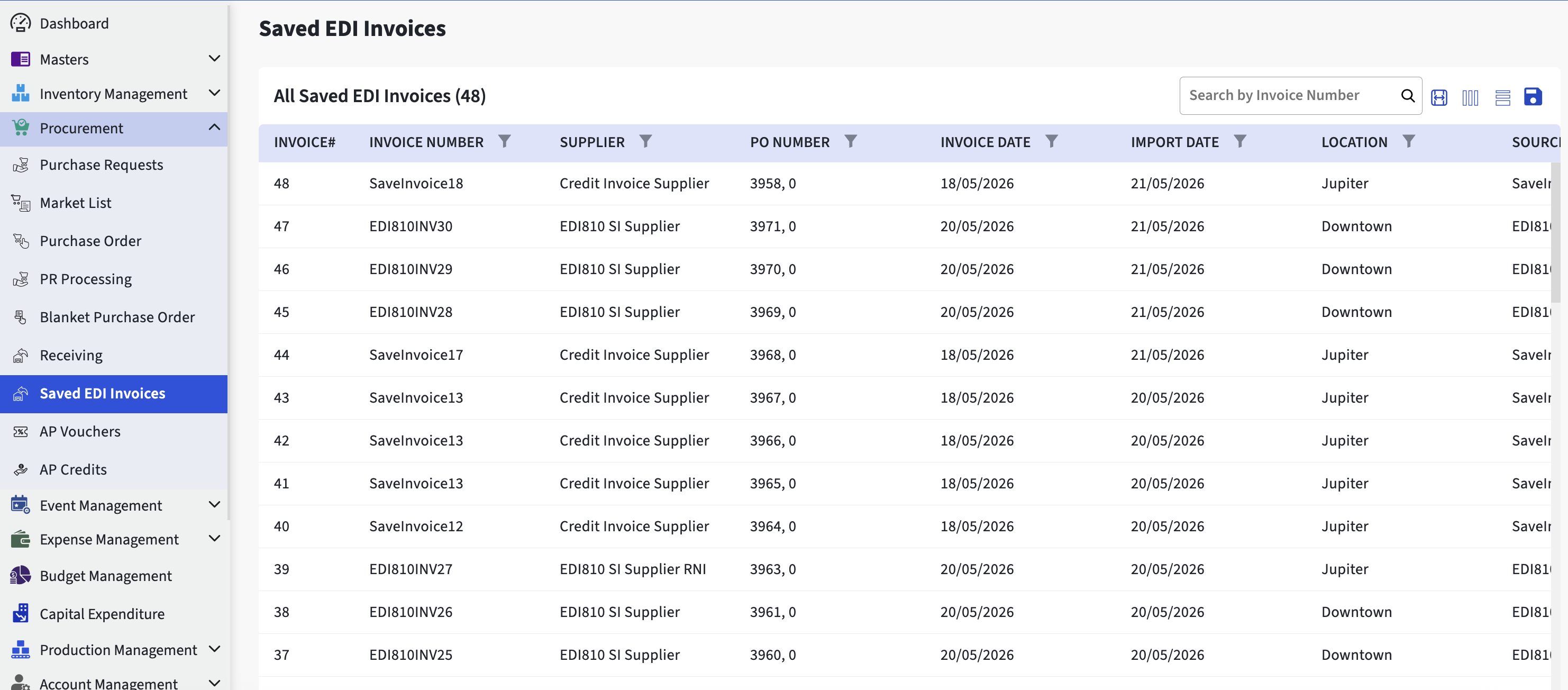
Click to open any saved EDI invoice. The Saved EDI Invoice page is displayed with the Supplier Total and Item List sections.
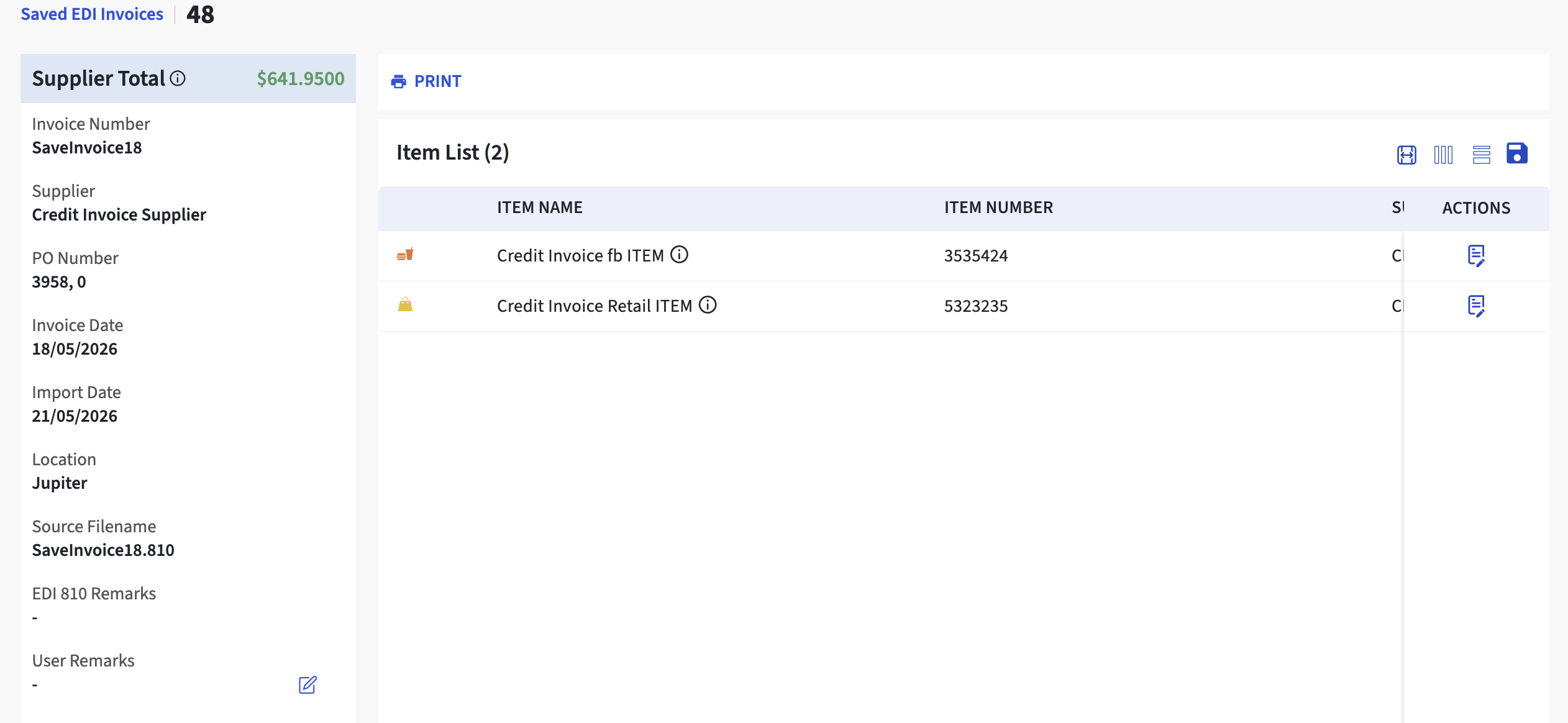
The Supplier Total contains following fields:
-
Invoice number
-
Supplier
-
PO Number
-
Invoice Date
-
Import Date
-
Location
-
Source Filename
-
EDI 810 Remarks
-
User Remarks
The Item List contains following fields:
-
Item Name
-
Item Number
-
Supplier Item#
-
Location
-
Unit
-
Pack Size
-
Quantity
-
Amount
-
EDI 810 Remarks
-
User Remarks
-
Actions
-
Update User Remarks
-
Add Header User Remarks
To add user remarks for supplier invoice, click the Edit icon under User Remarks. The Header User Remarks pop-up appears.
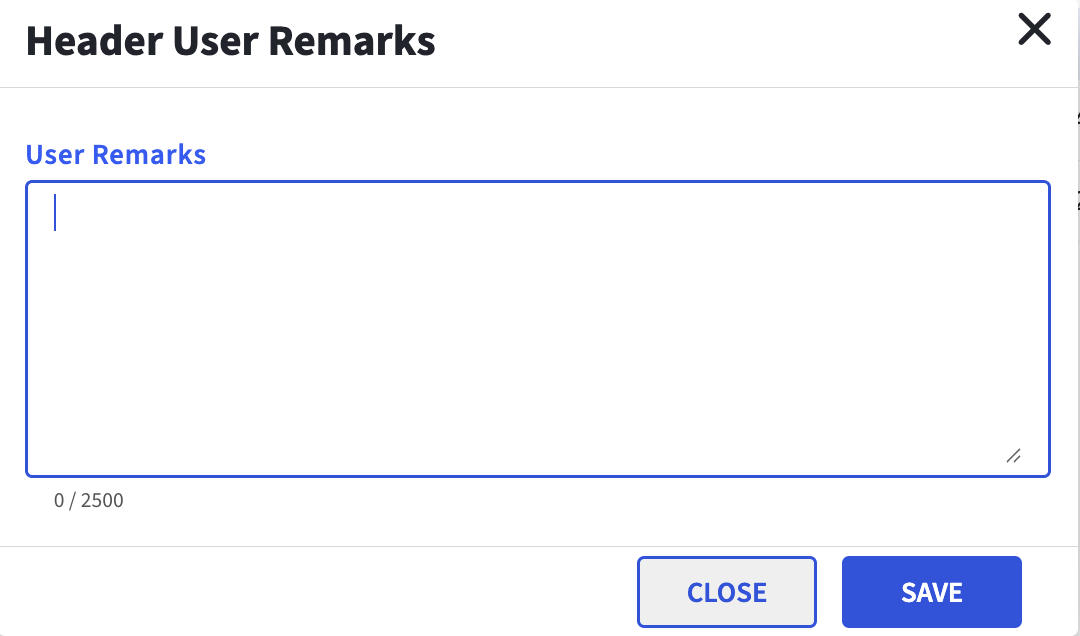
Enter any text in the User Remarks text box.
Click Save to save the remarks, else click Close.
Add User Remarks for Items
To add remarks for items, click the Update User Remarks under Actions against the preferred item in the Item List section. The following Line Item User Remarks pop-up appears.
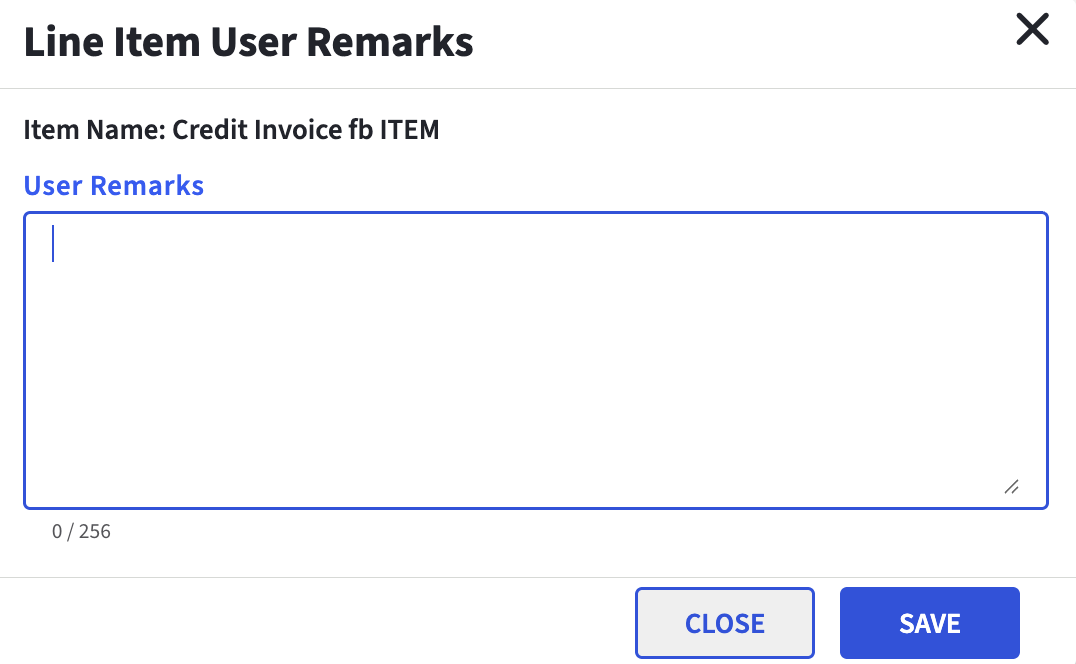
Enter any text in the User Remarks text box.
Click Save to save the remarks, else click Close.
Print Invoice
To print the EDI invoice, click Print from the saved EDI invoice page that is opened/displayed. The print copy of the saved invoice opens on a new browser tab.
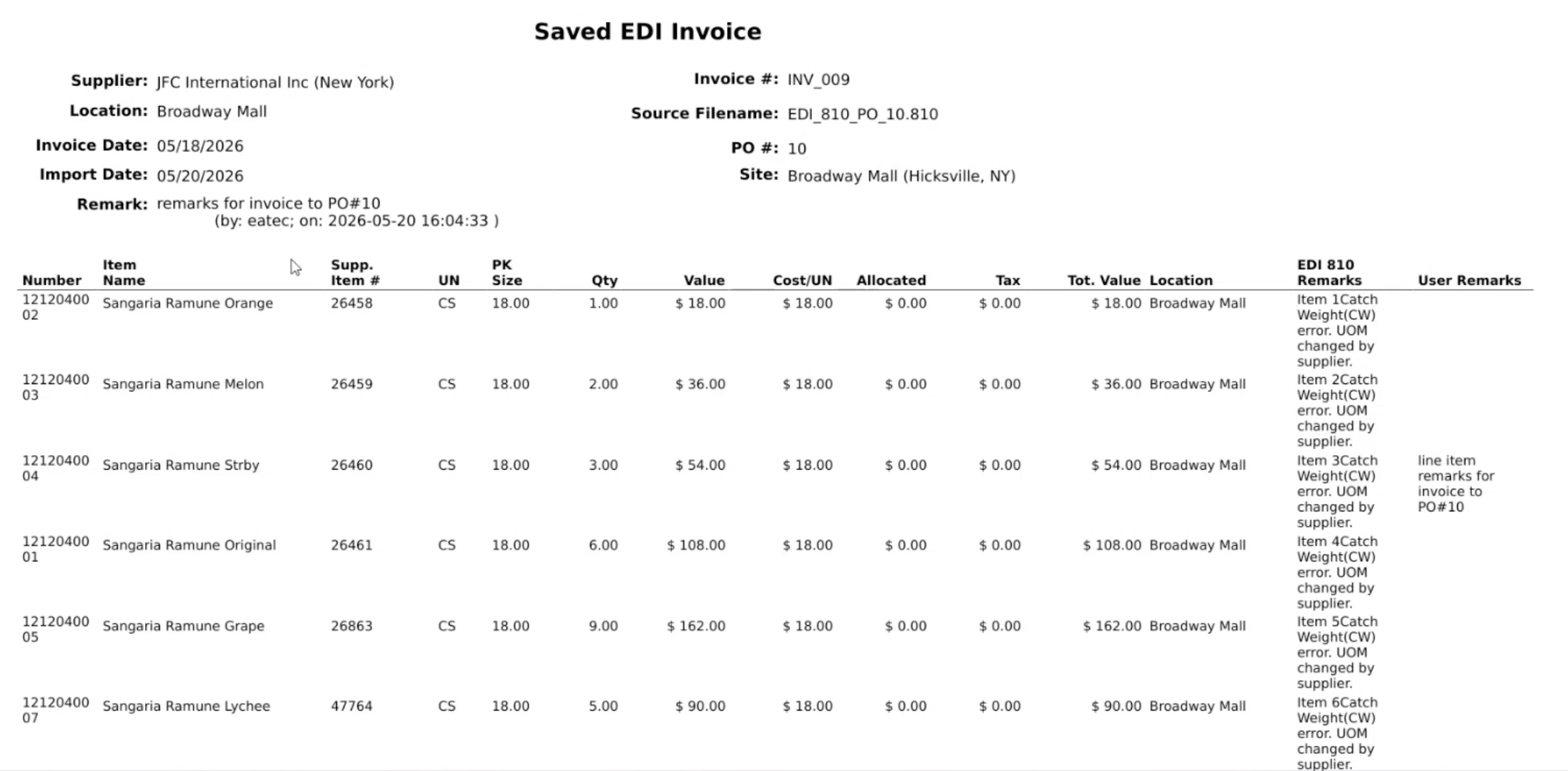
Click Print to take a print of the invoice.
View Receiving Details from Saved EDI 810 Invoice
Navigate to Procurement ➜ Receiving.
Click New Receiving.
In the Purchase Order# field, enter the PO number from the saved EDI invoice.
Select the PO number when it appears in the drop-down list.
The system automatically populates the receiving screen with the saved invoice details, including Location, Supplier, and Item List. A confirmation message is displayed: Receiving details are loaded from Saved EDI 810 Invoice.
Post Receiving
Enter details in all mandatory fields in the Details section.
Click Item List to view the list of items.
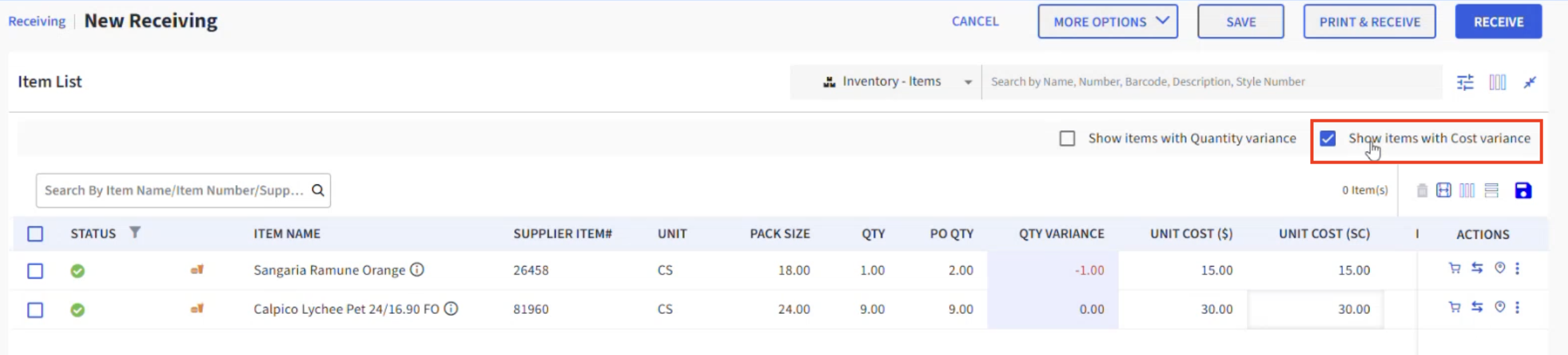
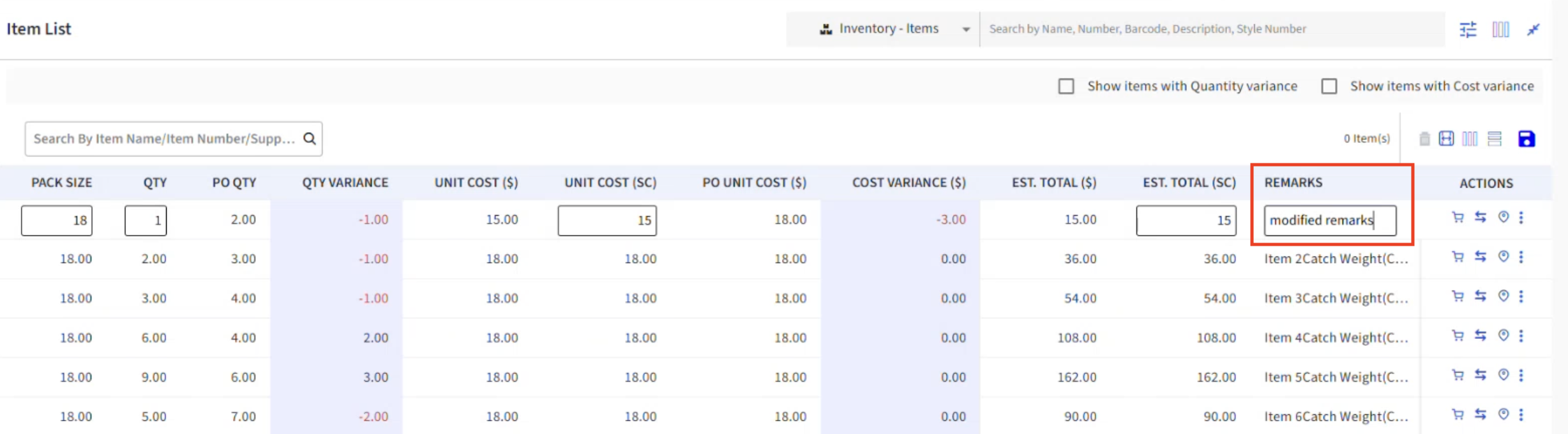
QTY Variance is calculated as the difference between Received Quantity (QTY) and PO Quantity.
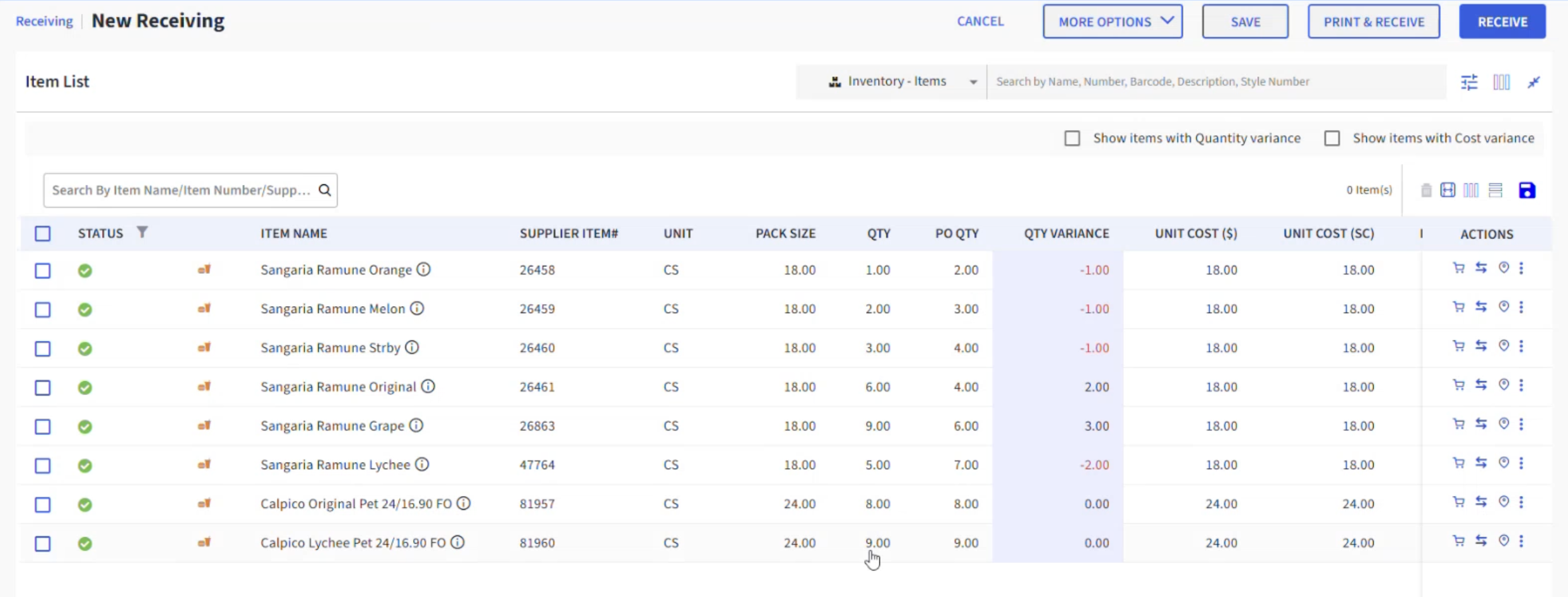
The Cost Variance ($) is calculated based on the difference in the Unit Cost (SC) and PO Unit Cost ($).
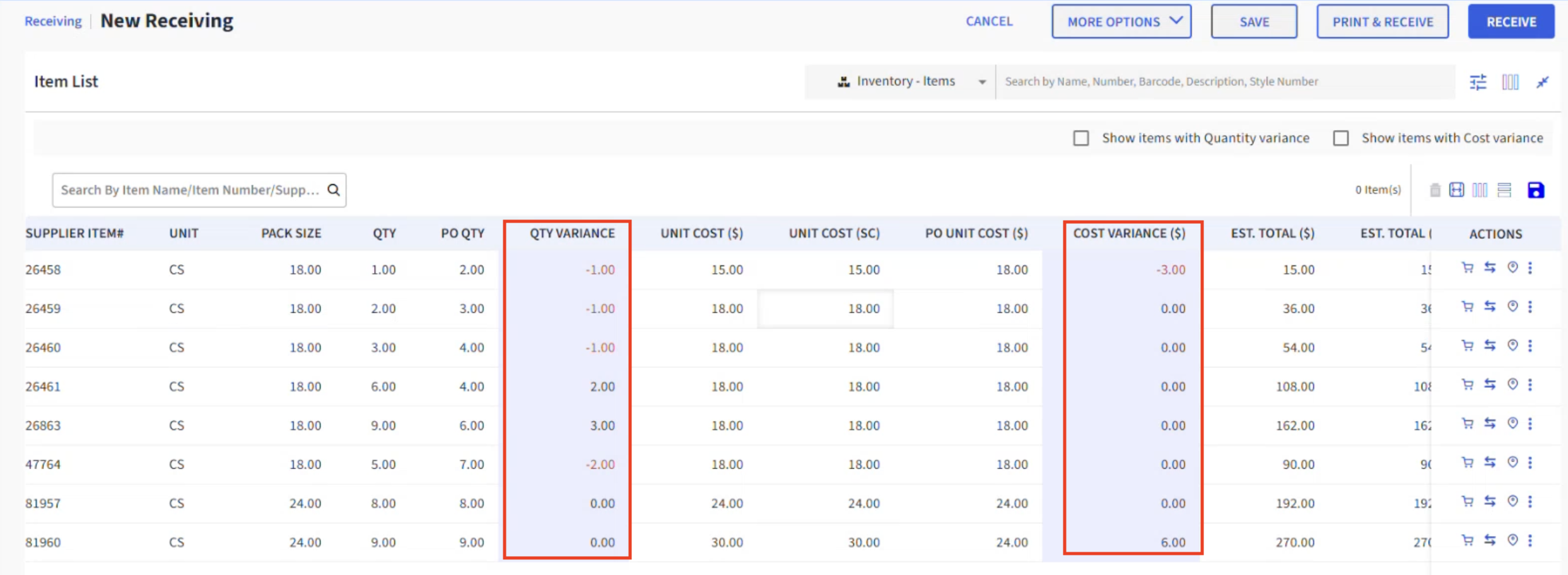
To view only items with quantity variance, select the Show Items with Quantity Variance checkbox.
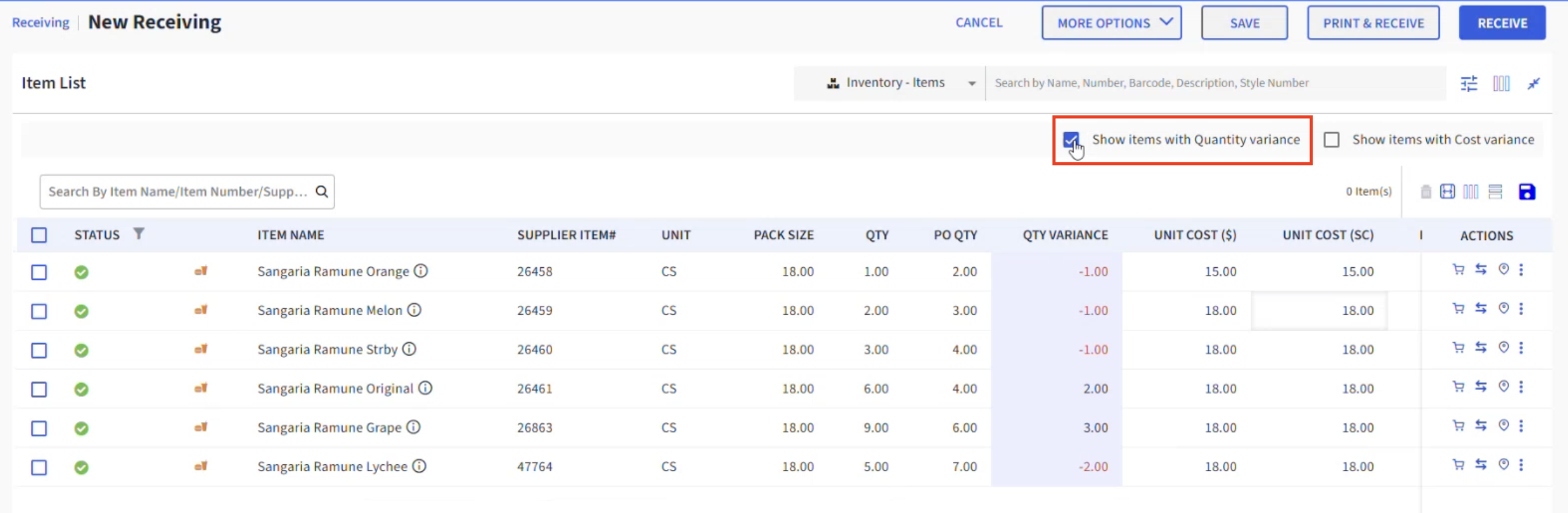
To view only items with cost variance, select the Show Items with Cost Variance checkbox.
Review the Remarks column to see comments carried over from the saved EDI invoice, and modify them if required before posting.
Click Receive to post the receiving.
The system posts the receiving successfully, capturing item quantities and cost details. Any variances are recorded, and the receiving transaction is completed with updated inventory records.