Retail
Users can view details of inventory products under the Retail category by performing the following steps:
Click Masters ➜ Inventory List ➜ Retail. The Inventory page displays the list of items belonging to the Retail category with the following details:
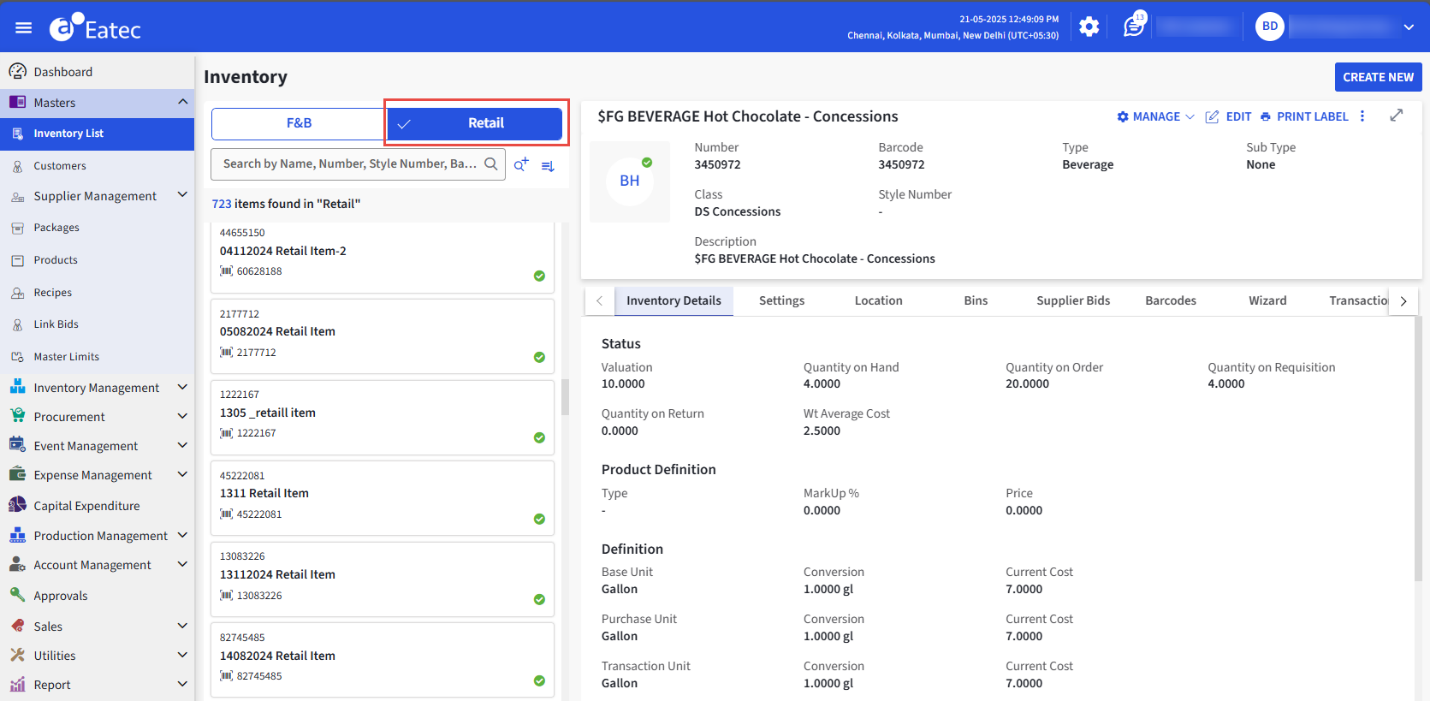
|
Field |
Description |
|---|---|
|
Name |
The name of the retail product. |
|
Image |
The display image of the retail product. |
|
Number |
The system generated identification number of the product. |
|
Barcode |
The barcode of the product. |
|
Type |
The type to which the product belongs. |
|
Class |
The class to which the product is grouped. |
|
Supplier |
The name of the supplier. |
Inventory Details
The Inventory Details displays the following details of the selected item:
|
Field |
Description |
|---|---|
|
Status |
|
|
Valuation |
The global or total valuation of the inventory item. Global valuation is a total of all inventory valuation across all locations for a site, and always reflects weighted average cost rather than the current cost. |
|
Quantity on Hand |
The count (in base units) of current global inventory based on the most recent transactions and postings. |
|
Quantity on Order |
The global count (in base units) of inventory items due to arrival, based on outstanding purchase orders. Eatec increases Quantity on Hand (QOH) and decreases Quantity on Order (QOO) at the time of merchandise arrival. |
|
Quantity on Requisition |
The global count (in base units) of the total quantity of an item that is on requisition. |
|
Wt Average Cost |
The global average weighted cost of the inventory item. This is the transaction cost, or the cost at which Eatec values a transaction. The system calculates Weighted Average Cost as the valuation divided by the QOH. |
|
Product Definition |
|
|
Type |
The Product Type. Upon saving the Retail Inventory Item, this field auto-fills Type on the Retail Products page. |
|
Markup |
Auto-fills with the Markup % as defined by Product Type on the Setup Product Types page if configured. To define markup percent by individual product, replace the default entry with the new Markup percent. This is optional. Used with the Inventory Item cost to calculate the selling Price. |
|
Price |
The selling prices. If Markup is used, this field auto-fills based on Inventory Item Current Cost and Markup percent. Auto-fills Price on the Retail Products page.
|
|
Definition |
|
|
Base Unit |
The primary unit for measuring an inventory item. |
|
Current Cost |
The current cost from a recent Supplier Invoice. Current Cost that displays at a site is the last cost paid for an item per base unit, in any location. Current Cost is maintained by location and is updated by each merchandise arrival, or production posting. |
|
Purchase Unit |
The default unit for purchasing and receiving an inventory item. The purchase unit is often in large quantities, such as case or tub. |
|
Current Cost |
The current cost from a recent Supplier Invoice. Current Cost that displays at a site is the last cost paid for an item per base unit, in any location. Current Cost is maintained by location and is updated by each merchandise arrival, or production posting. |
|
Transaction Unit |
The unit that is used most often to move an item between locations, or to count items. |
|
Current Cost |
The current cost from a recent Supplier Invoice. Current Cost that displays at a site is the last cost paid for an item per base unit, in any location. Current Cost is maintained by location and is updated by each merchandise arrival, or production posting. |
|
Recipe Unit |
The default unit used in building recipes and linking inventory items directly to products. The recipe unit is the only measure smaller than the base unit. |
|
Current Cost |
The current cost from a recent Supplier Invoice. Current Cost that displays at a site is the last cost paid for an item per base unit, in any location. Current Cost is maintained by location and is updated by each merchandise arrival, or production posting. |
|
Remarks |
Remarks, if any. |
|
Other Fields |
|
|
Control Price |
The control price of the inventory item. |
|
Default Label |
The default label for the inventory type as defined in Setup ➜ Inventory ➜ Inventory Types. |
|
Alternate Table |
The alternate table of the inventory item. |
|
Cost of Sales Account |
The cost of sales based on the Retail Inventory Item weighted average cost at the time the sale occurred. |
Settings
The Settings tab displays the following details of the selected item:
|
Field |
Description |
|---|---|
|
Activity Setting |
|
|
Depletion Option |
The available depletion options include the following:
|
|
Zero cost item |
Zero Costing are applicable to inventory items that need tracking, but have no cost. When Normal Costing option is selected in this field, Eatec proceeds with the standard cost of the inventory item. |
|
Visual One Setting |
|
|
Visual One Retail 1 |
Links items in Eatec with Visual One Retail 1. |
|
Visual One Retail 2 |
Links items in Eatec with Visual One Retail 2. |
|
Visual One Retail 3 |
Links items in Eatec with Visual One Retail 3. |
|
Visual One Retail 4 |
Links items in Eatec with Visual One Retail 4. |
|
Request AP# |
Allows the user to assign Visual One settings in Eatec. |
|
POS Setting |
|
|
Button Text 1 |
The text to be displayed on the Button 1. |
|
Button Text 2 |
The text to be displayed on the Button 2. |
|
Revenue Category |
The name of the revenue category. |
|
Tax Group |
The name of the tax group. |
|
Weight Flag |
Indicates whether the item is a weighted item. |
|
Weight Tare |
The amount of the weighted item. |
|
Bar Gun Code |
The bar gun code number. |
|
Tax Included |
Indicates if the tax amount is included. The supported values are Yes and No. |
|
Menu Item Group |
The name of the menu item group. |
|
Receipt Text |
The text to be displayed on the receipt. |
|
Kitchen Printer Text |
The text to be displayed on the kitchen receipt. |
|
Covers |
Indicates the number of covers for the location and meal period. |
|
Report Category |
The name of the report category. For example, Inventory, Suppliers A/P, Accounting, Retail. |
|
Voidable |
Indicates whether the item is voidable or not. The supported values are Yes and No. |
|
Price Override |
Indicates if there is a price override. The supported values are Yes or No. |
|
POS20 - POS40 |
POS setting fields when integrated with POS systems. |
|
Request AP # |
Indicates if Visual One settings are assigned in Eatec. The supported values are Yes and No. |
|
Food Based Serving Size |
The serving size based on the food. |
|
Storage Condition |
Remarks, if any. |
Location
The Location tab displays the following details of the selected item:
|
Field |
Description |
|---|---|
|
Location |
The name of the inventory storage location. |
|
Quantity On Hand |
The current quantity on hand |
|
Value |
The value of the inventory on hand. |
|
Current Cost |
The current cost of the item. |
|
WAC |
The weighted average cost of the item. |
|
Min Par |
The minimum quantity on hand the inventory item must reach before a restocking quantity is proposed or suggested. |
|
Max Par |
The maximum required quantity on hand or inventory level to meet the forecasted consumption. |
|
Depletion Option |
The available depletion options include the following:
|
|
Last Physical Post Date |
The post date for the last physical inventory count. |
|
Last Physical Quantity |
The physical inventory quantity posted from the last physical inventory count. |
|
Adjusted QTY |
The adjusted Inventory Item quantity auto-fills which is either an increase or a decrease. Adjusting inventory is the resorting of Inventory Item activity and the recalculation of Quantity on Hand chronologically by date order. |
|
Adjusted Value |
The adjusted value or the adjusted quantity times current cost for the location auto-fills. |
Users can search for a specific location by entering the location name in the search box.
Users can filter locations using the following filters:
-
Locations
-
Depletion Option
-
Production Option
-
Last Physical post Date
Bins
The Bins tab displays the following details associated with the selected item:
|
Field |
Description |
|---|---|
|
Location |
The location where the bins are added. |
|
Zone |
The zone associated with the location. |
|
Bin |
The bin name associated with the location and zone. |
|
Bin # |
The bin item number generated by Eatec. |
|
Bin Capacity |
The capacity of the bin to hold maximum number of quantities of the inventory item. The bin capacity is displayed in the unit of measure of the item’s base unit. |
|
Bin QOH |
The quantity allocated to the bin. |
|
Bin Priority |
The category of bin priority. |
|
Last Physical Posted |
The date the last physical was posted. |
|
Last Physical Quantity |
The last physical quantity posted for the inventory item for the bin. |
Users can search for a specific location by entering the bin name in the search box.
Supplier Bids
Inventory items are ordered from specific suppliers. The Supplier Bids tab displays the following details of the selected item:
|
Field |
Description |
|---|---|
|
Supplier |
The name of the supplier. |
|
Supp# |
The SKU or item number the supplier has assigned to the inventory item. |
|
Unit |
The purchasing unit of measure. |
|
Pack Size |
The number of base units in the purchasing unit of measure. |
|
Price |
The supplier price for the inventory item based on quantity/units. |
|
Effective Date |
The date the bid is effective from. |
|
Expire Date |
The expiry date of the bid. |
|
Normalized |
The price of the item per base unit. |
|
Minimum Order Quantity |
The minimum order quantity required to process the order. |
|
Priority |
Includes the following priorities:
|
|
Bid Regions |
The region where the bid is effective. |
|
Remarks |
Remarks, if any. |
|
Contracted |
The name of the assigned contracted bid. Contracted bids assume the highest priority when assigned in a Purchase Order. |
|
Lead Time |
The number of days from placing the order to delivery. |
|
Delivery Schedule |
The date the delivery is scheduled. |
Users can search for a specific supplier bid by entering the supplier’s name in the search box.
Users can filter supplier bids using the following filters:
-
Suppliers
-
Effective Date
-
Supplier Date
-
Priority
-
Catch Weight
-
Contracted
Barcodes
The Barcodes tab displays the following details of the selected item:
|
Field |
Description |
|---|---|
|
Barcode |
The barcode of the product. |
|
Unit Type |
The unit of measure for the item represented by the barcode. |
|
Unit |
The unit of measure. |
|
Pack Size |
The pack size or the number of base units. |
|
Entered On |
The date on which the barcode was entered. |
|
Remarks |
Remarks, if any. |
Users can search for a specific barcode by entering the barcode number in the search box.
Wizard
The Wizard tab displays the following details of the selected item:
|
Field |
Description |
|---|---|
|
Name |
The name of the inventory item. |
|
Number |
The unique identification number of the inventory item. |
|
Barcode |
The barcode of the inventory item. |
|
Manufacturer |
The name of the manufacturer. |
|
Size |
The size of the inventory item. |
|
Color |
The color of the inventory item. |
|
Style |
The style of the inventory item. |
|
Season |
The season of the inventory item. |
|
Brand |
The brand of the inventory item. |
Transactions
The Transactions tab displays the details based on the following selected transaction option:
-
Requisition
-
Transfer
-
Purchase Orders
-
Receiving
-
Usage
Requisition
A requisition initiates the request for a particular item and records the transaction request associated with the inventory item. Requisition displays the following details associated with the selected item:
|
Field |
Description |
|---|---|
|
Requisition# |
The system generated requisition number. |
|
Request Location |
The location the items are requested. |
|
Supply Location |
The location the items are supplied. |
|
Delivery Date |
The date of the items to be delivered. |
|
Quantity |
The requested quantity of items in base units. |
|
Unit |
The unit the quantity of items is measured. |
|
Pack Size |
The pack size or the number of base units. |
|
QTY (BU) |
The requested quantity of items in base units. |
|
Remark |
Optional text field. |
|
Entered On |
The date the requisition was entered. |
|
Entered By |
The user who created the requisition. |
Users can search for a specific transaction by entering the requisition number in the search box.
Transfer
Users can transfer a particular inventory item from one location to another location. Transfer displays the following details associated with the selected item:
|
Field |
Description |
|---|---|
|
Transfer# |
The system generated transfer number. |
|
From |
The location where the inventory item is transferred from. |
|
To |
The location where the inventory item must be transferred to. |
|
Post Date |
The date the transfer was posted. |
|
QTY (BU) |
The requested quantity of items in base units. |
|
Value |
The value of the inventory item. |
|
Qty |
The requested quantity of items in base units. |
|
Unit |
The unit the quantity of items is measured. |
|
Pack Size |
The pack size or the number of base units. |
|
Remarks |
Optional text field. |
|
Requisition# |
The system generated requisition number. |
|
Entered By |
The user who created the requisition. |
|
Entered On |
The date the requisition was entered. |
|
To Customer |
The name of the customer where the items must be delivered. |
|
Received By |
The name of the customer where the items must be received. |
|
Transit Status |
The transit status of the inventory item. |
Users can search for a specific transaction by entering the transfer number in the search box.
Purchase Orders
Users can the track purchases made from their suppliers. Purchase Orders display the following details associated with the selected item:
|
Field |
Description |
|---|---|
|
Purchase Order# |
The system generated purchase order number. |
|
Supplier |
The name of the supplier. |
|
Location |
The location where the items are transferred to. |
|
Delivery Date |
The delivery date of items. |
|
Qty |
The requested quantity of items in base units. |
|
Unit |
The unit the quantity of items is measured. |
|
Pack Size |
The pack size or the number of base units. |
|
Value |
The value of the inventory item. |
|
Remarks |
Remarks, if any. |
|
Entered By |
The user who created the requisition. |
|
Entered On |
The date the requisition was entered. |
|
Reason |
Remarks, if any. |
|
Export Status |
The status of item export. |
Users can search for a specific transaction by entering the purchase order number in the search box.
Receiving
Users can keep a record of the received inventory items. Receiving displays the following details associated with the selected item:
|
Field |
Description |
|---|---|
|
Supplier |
The name of the supplier. |
|
Invoice# |
The unique invoice number by the supplier. If the user did not receive an invoice, enter the bill of lading or packing slip number. |
|
Post Date |
The date the receiving was posted. |
|
QTY (BU) |
The requested quantity of items in base units. |
|
Cost (BU) |
The cost per base unit. |
|
Value (BU) |
The value of the inventory item per base unit. |
|
Location |
The location where the items are transferred to. |
|
PU |
The purchase unit of measure. |
|
Qty |
The requested quantity of items in base units. |
|
Cost/Unit |
The cost of the inventory item per unit. |
|
Value |
The value of the inventory item. |
|
Allocate |
The allocated charges paid for the invoice. |
|
Pack Size |
The pack size or the number of base units. |
|
Remarks |
Remarks, if any. |
|
Purchase Order# |
The system generated purchase order number. |
|
Supplier Item# |
The supplier item number. |
|
Entered By |
The user who created the requisition. |
|
Entered On |
The date the requisition was entered. |
|
Attachment |
The name of the attached file. |
Users can search for a specific transaction by entering the invoice number in the search box.
Usage
The Usage tab displays the following details associated with the selected item:
|
Field |
Description |
|---|---|
|
Location |
The name of the location. |
|
Post Date |
The date the transaction was posted. |
|
QTY |
The requested quantity of items. |
|
Value |
The value of the inventory item. |
|
Usage Type |
The usage postings for inventory item including depletion, production, spoilage and loss, and variance. |
|
Source |
The sales transaction source type. For example, Rest, Sales, Catering, Quick Orders, Concessions. |
|
Remarks |
Remarks, if any. |
Users can search for a specific transaction by entering source in the search box.
Cross Reference
The Cross Reference tab displays the following details associated with the selected item:
|
Field |
Description |
|---|---|
|
Item Name |
The name of the inventory item. |
|
Remarks |
Remarks, if any. |
|
Type |
The type of reference. |
History
The History tab displays the following details associated with the selected item:
|
Field |
Description |
|---|---|
|
Created Date |
The date of item creation. |
|
Create By |
The username of the user who created the item. |
|
Changed Date |
The date of modification. |
|
Field Changed |
The name of the field which was changed. |
|
Changed From |
The value of the field which was changed from. |
|
Changed To |
The value of the field which was changed to. |
|
User |
The name of the user who made the change. |