Creating Spoilages and Loss
Users can create spoilages by performing the following steps:
Click Inventory Management ➜ Spoilage and Loss. The Spoilage & Loss screen appears.
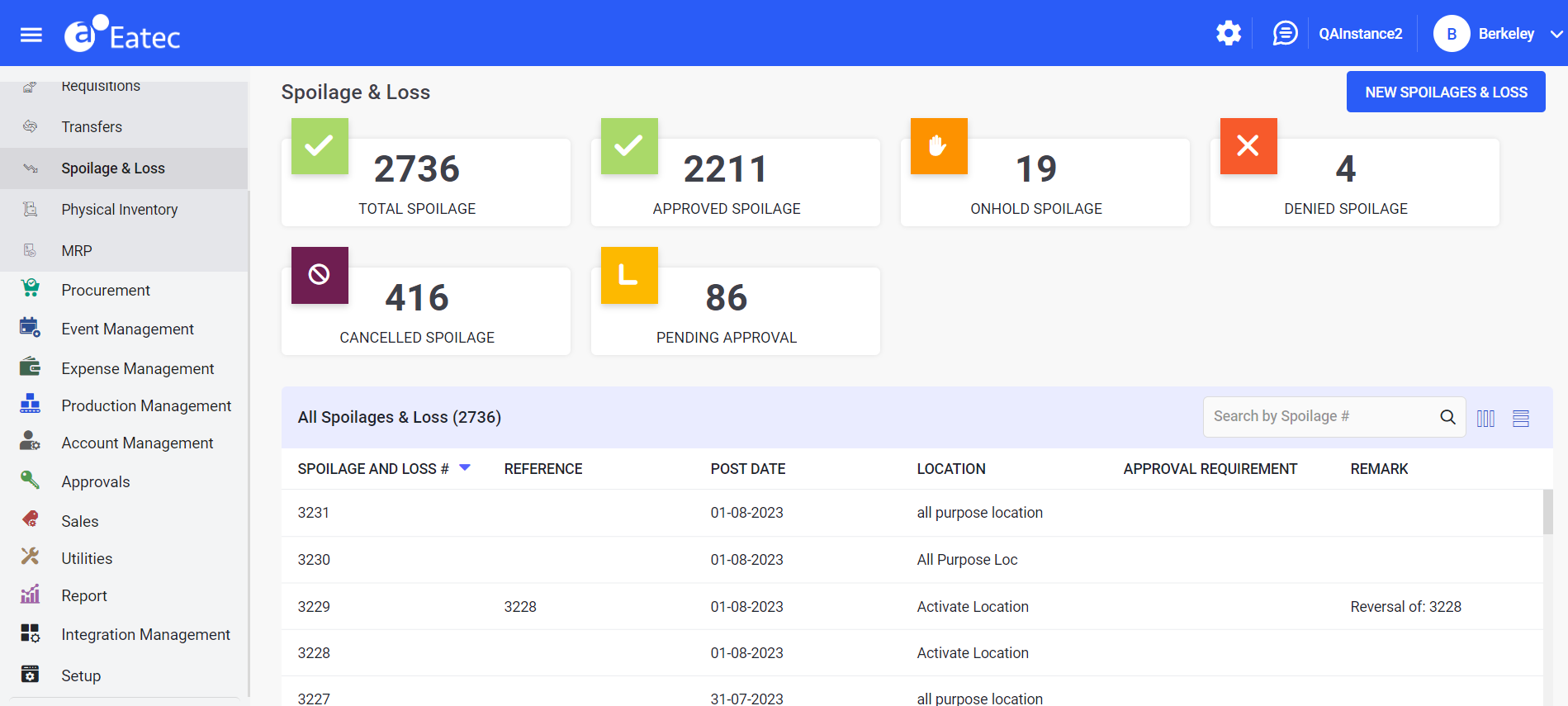
Click New Spoilages & Loss. The New Spoilages & Loss screen appears.
Refer to the following table and fill in the fields:
|
Field |
Description |
|---|---|
|
Details |
|
|
Location |
The location from where the spoiled item was received. Select the location from the drop-down list. |
|
Post Date |
The date the spoilage was posted. Select the date from the date picker. |
|
Reason |
The cause of spoilage. Select the cause of spoilage from the drop-down list. |
|
Reference |
Reference to the spoilage, if any. |
|
Remark |
Optional text field. |
|
Approved By |
The name of the approver. This is a read-only field. |
|
Department |
The name of the department. Select the department from the drop-down list. |
|
Override Account Number |
The override account number. The override account number can also be a sub account number. Select the override account number from the drop-down list. |
Click Item List. The Item List screen appears.
Select the category from the following Inventory drop-down list:
-
Items - a single item that belongs to the inventory
-
Packages - a logical grouping of inventory items
-
Class - a broader classification of the inventory item
-
Type - the type of inventory item
Perform a keyword search in the Search box.
Users can enter the name/number/barcode/description in the Search box if the selected item belongs to an inventory or recipe.
Users can enter the package name in case of package.
Select the desired items by choosing the respective checkboxes.
Click Select. The created items appear under the Item List section with the following details:
|
Field |
Description |
|---|---|
|
Item Name |
The name of the item. |
|
Unit |
The purchasing unit of measure. Select the preferred option from the drop-down list. |
|
Pack Size |
The number of base units in the purchasing unit of measure. |
|
Quantity |
The quantity or number of units ordered. Enter the quantity of inventory item or recipe. |
|
Estimated Total |
The unique identification number for this lot. |
|
Remarks |
Remarks, if any. |
Click on the item.
Enter valid details in the required fields.
Click Post Spoilage. The Confirmation pop-up window appears.
The Post Spoilage button will be activated only upon entering the quantity of the item/s.
Click Confirm.