Configuring Session Timeout
Users can configure the session time out by performing the following steps:
Click the Settings icon next to the Date, Time, and Location in the home page header. The Session Timeout pop-up appears on the right.
By default, the Turn on session timeout checkbox is enabled.
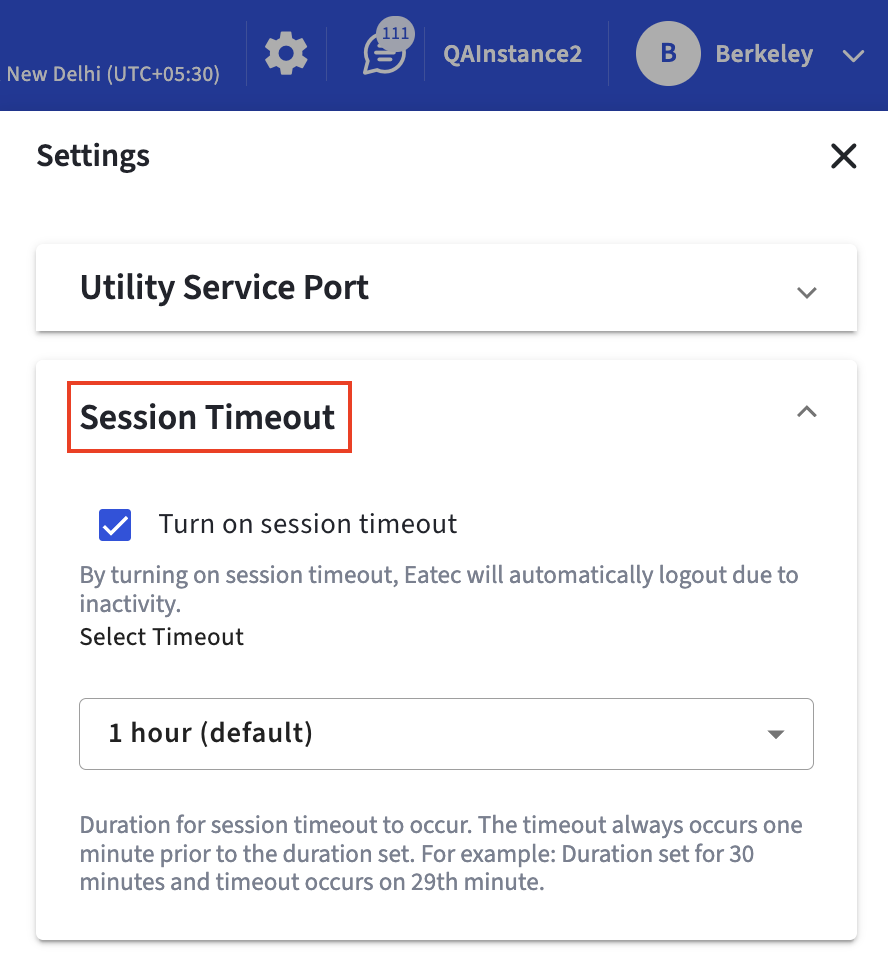
Select the preferred session timeout from the Select Timeout drop-down list.
When session timeout is enabled, Eatec automatically logs users out after a period of inactivity. For example, when a user does not perform any action in Eatec for 15 mins, the Session Timeout popup appears.
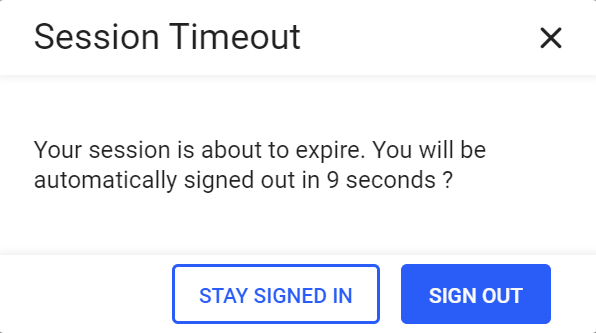
When users click Stay Signed In the current continues. When users click Sign Out, the session ends.
If no option is selected within 15 seconds, as indicated by the countdown timer, the session automatically expires and the information pop-up is displayed with a session expiration message.
The session timeout occurs one minute before the configured duration. For example, if the timeout is set to 30 minutes, the session expires at 29 minutes.