Configuring Retail Inventory Items
Eatec allows the users to configure the retail inventory items under this section. Users can perform the following tasks for Retail category under Inventory:
-
Creating retail inventory items
-
Filtering retail inventory items
-
Modifying retail inventory items
-
Duplicating existing retail inventory items
-
Deactivating retail inventory items
-
Activating retail inventory items
-
Managing retail inventory items
Creating Retail Inventory Items
Users can create inventory items by performing the following steps:
Click Masters ➜ Inventory List ➜ Retail. The Inventory page appears.
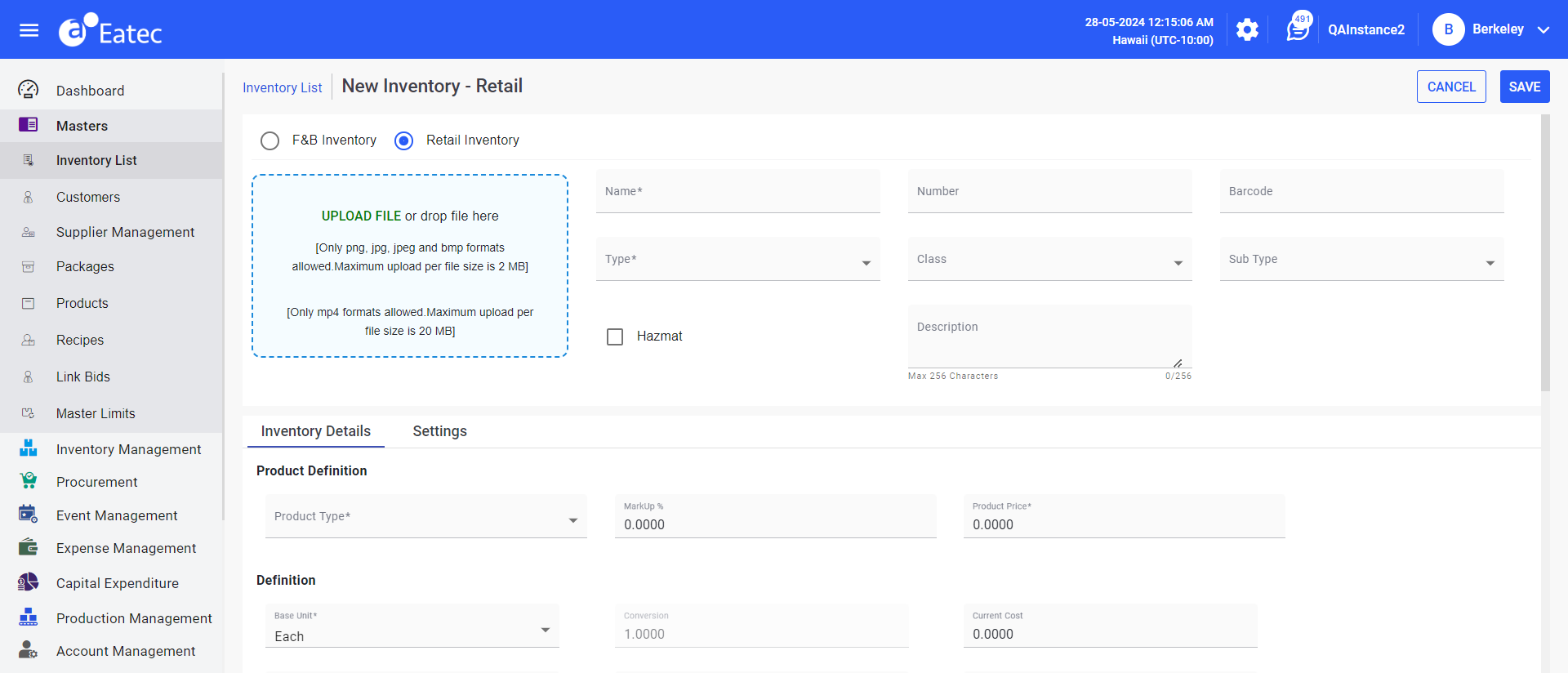
Click Create New. The Add Inventory - Retail Inventory page appears.
-
Refer to the following table and fill in the fields:
|
Field |
Description |
|---|---|
|
Upload Item Image |
An image for the retail inventory product. |
|
Active Ingredients |
This checkbox is enabled by default. |
|
Name |
The name of the inventory product. |
|
Number |
The unique identification number of the inventory product. |
|
Barcode |
The barcode number of the product. Select the barcode from the drop-down list. |
|
Type |
The type to which the product belongs. Select the type from the drop-down list. |
|
Class |
The class to which the product is grouped. Select the class from the drop-down list. |
Enter the following details associated with the item:
-
Inventory Details
-
Settings
Click Save.
Filtering Retail Inventory Items
Users can filter retail inventory items based on the following parameters:
-
Status - the active/inactive status of the product
-
Type - the type to which the product belongs
-
Class - the class to which the product belongs
To filter retail inventory items, perform the following steps:
Click Masters ➜ Inventory List ➜ Retail. The Inventory page appears.
Click the Filter icon on the Inventory page. The Filters pane appears.
Select the desired filtering parameters by enabling the checkboxes under the following filters:
-
Status
-
Type
-
Class
The filtered results are displayed according to the selected parameters.
Modifying Retail Inventory Items
Users can modify the details of a retail inventory item by performing the following steps:
Click Masters ➜ Inventory List ➜ Retail. The Inventory page appears.
Select an inventory item on the left inventory list pane.
Click Edit. The Edit Inventory - Retail page appears.
Modify the preferred details within the following tabs:
-
Inventory Details
-
Settings
-
Locations
-
Bins
-
Supplier Bids
-
Barcodes
-
Wizard
Click Save.
In addition to updating the values within the tabs, users can perform the following modifications under locations, bins, supplier bids, and barcodes within the Inventory List.
Modifying Locations in Inventory List
Users can modify the inventory details of items belonging to a location by performing the following:
Click Masters ➜ Inventory List ➜ Retail.
Select an item from the inventory list.
Click Edit. The Edit Inventory - F&B page appears.
Click the Locations tab.
Click the ellipsis under Actions tab corresponding to the preferred location.
Click Edit. The Edit Locations page appears.
Refer to the following table and fill in the details:
|
Field |
Description |
|---|---|
|
Location |
The name of the inventory storage location. |
|
Quantity On Hand |
The current quantity on hand. |
|
Value |
The value of the inventory on hand. |
|
Current Cost |
The current cost of the item. |
|
Weighted Average Cost |
The weighted average cost of the item. |
|
Min Par |
The minimum quantity on hand the inventory item must reach before a restocking quantity is proposed or suggested. |
|
Max Par |
The maximum required quantity on hand or inventory level to meet the forecasted consumption. |
|
Depletion Option |
The available depletion options include the following:
|
|
Last Physical Post Date |
The post date for the last physical inventory count. |
|
Adjusted Quantity |
The adjusted Inventory Item quantity auto-fills which is either an increase or a decrease. Adjusting inventory is the resorting of Inventory Item activity and the recalculation of Quantity on Hand chronologically by date order. |
|
Adjusted Value |
The adjusted value or the adjusted quantity times current cost for the location auto-fills. |
|
Last Physical Quantity |
The physical inventory quantity posted from the last physical inventory count. |
Click Save.
Modifying Bins in Inventory List
Users can perform the following actions under Modifying Bins:
-
Create bins
-
Modifying bins
-
Access history
-
Clear bins
Creating Bins
Users can map bins to the inventory item by performing the following steps:
Click Masters ➜ Inventory List ➜ Retail.
Select an item from the inventory list.
Click Edit. The Edit Inventory - Retail page appears.
Click the Bins tab.
Click Add New to open the Add Bins page.
Refer to the following table and fill in the details:
|
Field |
Description |
|---|---|
|
Bin # |
This is a blank read-only field. The bin number is automatically generated after the bin is created. |
|
Unallocated Quantity |
The inventory item’s quantity available in the location that is not allocated to any bin. This is a read-only field. |
|
Location |
Select the preferred location from the drop-down list for the selected item to which bins must be added. |
|
Zone |
Select the preferred zone from the drop-down list for the selected location. |
|
Bin |
Select the preferred bin from the drop-down list for the selected location and zone. |
|
Bin Capacity |
Enter the capacity of the bin to hold maximum number of quantities of the inventory item. The bin capacity must be expressed in the unit of measure of the item’s base unit. |
|
Bin QOH |
Enter the quantity allocated to the bin. |
|
Bin Priority |
Enter the category of bin priority. |
Click Add.
Modifying Bins
Users can modify the bin details of an inventory item by performing the following steps:
Click Masters ➜ Inventory List ➜ Retail.
Select an item from the inventory list.
Click Edit. The Edit Inventory - Retail page appears.
Click the Bins tab.
Click the ellipses corresponding to the preferred bin in the bin list.
Click Edit to open the Edit Bins page.
Modify the details as preferred.
Click Save.
Accessing History
Users can view the history of updates made to the inventory item in the bin by performing the following steps:
Click Masters ➜ Inventory List ➜ Retail.
Select an item from the inventory list.
Click Edit. The Edit Inventory - Retail page appears.
Click the Bins tab.
Click the ellipses corresponding to the preferred bin in the bin list.
Click History to open the History page. The following details are displayed:
|
Field |
Description |
|---|---|
|
Item name |
The name of the inventory item. |
|
Bin # |
The auto-generated bin number for the inventory item. |
|
Changed Date |
The date of revision. |
|
Field Changed |
The name of revised field. |
|
Changed From |
The old value of revised field. |
|
Changed To |
The new value of revised field. |
|
User |
The username of the user who revised the bin properties. |
Clearing Bins
Users can remove the inventory item quantities from the bin by performing the following steps:
Click Masters ➜ Inventory List ➜ Retail.
Select an item from the inventory list.
Click Edit. The Edit Inventory - Retail page appears.
Click the Bins tab.
Click the ellipses corresponding to the preferred bin in the bin list.
Click Clear Bin. The system prompts the user to confirm the removal of item quantities from the bin.
Click Confirm.
Duplicating Existing Retail Inventory Items
Users can duplicate an existing retail inventory by performing the following steps:
Click Masters ➜ Inventory List ➜ Retail. The Inventory page appears.
Select an inventory item on the left inventory list pane.
Click Copy. The New Inventory - Retail page appears.
Enter an alternative name for the existing retail inventory item in the Name field.
Click Save.
Deactivating Retail Inventory Items
Users can deactivate an existing retail inventory item by performing the following steps:
Click Masters ➜ Inventory List ➜ Retail. The Inventory page appears.
Select an inventory item on the left inventory list pane.
Click Deactivate. The system prompts the user to confirm the deactivation.
Click Confirm.
Activating Retail Inventory Items
Users can activate a retail inventory by performing the following steps:
Click Masters ➜ Inventory List ➜ Retail. The Inventory page appears.
Select a deactivated inventory item.
Click Activate. The system prompts the user to confirm the activation.
Click Confirm.
Printing Labels
Users can print labels of a retail inventory item by performing the following steps:
Click Masters ➜ Inventory List ➜ Retail. The Inventory page appears.
Select an inventory item on the left inventory list pane.
Click Print. The Print Label screen appears.
Refer to the following table and select the preferred options:
|
Field |
Description |
|---|---|
|
Label Count |
Enter the number of labels to be printed. |
|
Select Label Template |
Select the preferred label template. |
|
Choose Printer |
Choose the preferred option from the following:
|
|
Price Option |
Select the price to be printed. |
|
Price |
Enter the price amount. |
Click Print.
Managing Retail Inventory Items
Users can manage the packages within their inventory list by performing the following steps:
Click Masters ➜ Inventory List ➜ Retail.
Click Manage ➜ Manage Package. The Manage Packages page appears with the following details:
-
Package name
-
Barcode number
-
List of packages
Select the preferred items to add to the package.
Click Save.
Users can search for the preferred package by entering the package name in the Search text box.
Managing Packages
Users can create new packages by performing the following steps:
Click Manage ➜ Manage Package.
Click Create New Packages.
Refer to the following table and fill in the fields:
|
Field |
Description |
|---|---|
|
Name |
The name of the package. |
|
Description |
The description about the package. |
Click Save.
Print Bids
Print Label Nutrition allows users to print the nutrition label of the inventory product. Perform the following steps to print or download the nutrition list for the F&B products:
Click Masters ➜ Inventory List ➜ Retail ➜ Manage ➜ Print Bids. The print layout appears with the supplier bid details of items on the browser where users can download or print the PDF.
Replace Item
This feature allows the users to replace any inventory item as required. Users can replace items by performing the following steps:
Click Retail ➜ Manage ➜ Replace Item. The Replace Item pop-up appears.
Refer to the following table and fill in the fields:
|
Field |
Description |
|---|---|
|
Replace With |
The name of the item to replace with. This is a mandatory field. |
|
Conversion |
The conversion amount of the inventory item. |
|
Units |
The unit of the item to be replaced. |
|
Replace In |
This field displays a drop-down list with the following options:
|
|
Affected Items |
The names of the affected items. The drop-down list displays the names of the items. This is a mandatory field. |
Click Replace.
Manage Master Limits
Master Limits allows the users to add or remove items directly to and from Master Limit packages from within the respective record screens.
Click Masters ➜ Inventory List ➜ Retail.
Click Manage ➜ Manage Master Limits. The Manage Master Limits page appears with the following details:
-
Item Name
-
Item Number
-
Current Site name
-
Number of selected Master Limit packages
-
Search field for Inventory Master Limit packages
-
List of all available Master Limit packages applicable to the current site
Select the preferred items to add to the package.
Click Save.
Users can search for the preferred package by entering the package name in the Search text box.
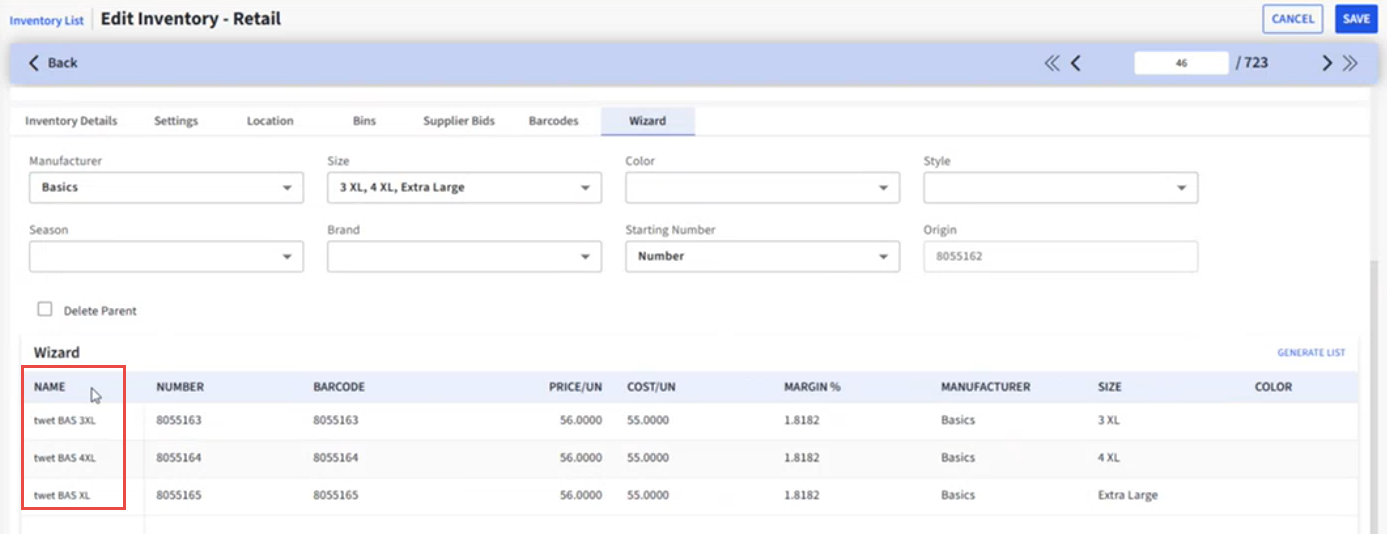
State Name Column in Wizard Tab
The Name column in the Wizard tab for a retail inventory item is made static that allows users to scroll towards left and right to modify items as preferred. This feature is available only in the Edit mode.
Retail Inventory Enhancements
Retail Wizard - Cost/UN:
Allows users to modify cost of Retail items proposed to be created
-
Default Value: Cost/UN of Parent Retail item
-
Field Type: Re-writable Numeric only field.
-
Conditions:
-
Negative values are not allowed.
-
Decimal values are allowed. Rounded to decimal places from Site Setup
-
-
When saved, retail inventory and products created from Retail Wizard shall have the user provided Cost/UN.
Retail Wizard - Description:
-
Includes Description column to Retail Wizard table
-
Default Value: Description of Parent Retail item
-
Field Type: Re-writable alphanumeric field.
-
Conditions:
-
Max length 256 characters
-
-
When saved, Retail inventory and products created from Retail Wizard shall have the user provided Description
Retail Wizard - Style Number:
-
Includes Style Number column to Retail Wizard table
-
Default Value: Style Number of Parent Retail Item
-
Field Type: Re-writable alphanumeric field.
-
Conditions:
-
Max length 64 characters
-
When saved, Retail inventory created from Retail Wizard shall have the user provided style number
-
Retail Reports - Option to include child Retail items linked with Parent Retail item thru descriptors:
-
Report filter: include descriptor parent items as group
-
Filter Type: Dropdown option
-
Filter options: Yes or No
-
If Yes, then for every descriptor child item (created through wizard) selected to be reported in report, group selected descriptor child items and add Wizard parent item as group header.
-
If No, then only individual retail items shall be selected without any parent/child association with descriptors.
-
Applicable Retail reports: SLS03, SLS04, SLSRT01, SLSRT04, SLSrt08, ING21, ING29, PUR04, INV61, ING03, ING03NEG, INGrtsnap, INV03, INV03D, INV21, INV21IST, INV24, INV33, INV35, INV61S, PUR05, PUR19b, RECVR03, RECVR04, PRO11.