Adding Tasks
Users can add tasks to customers by performing the following steps:
Navigate to the Menu ➜ Masters ➜ Customers ➜ Select a customer ➜ Click Edit ➜ Click the Task List tab.
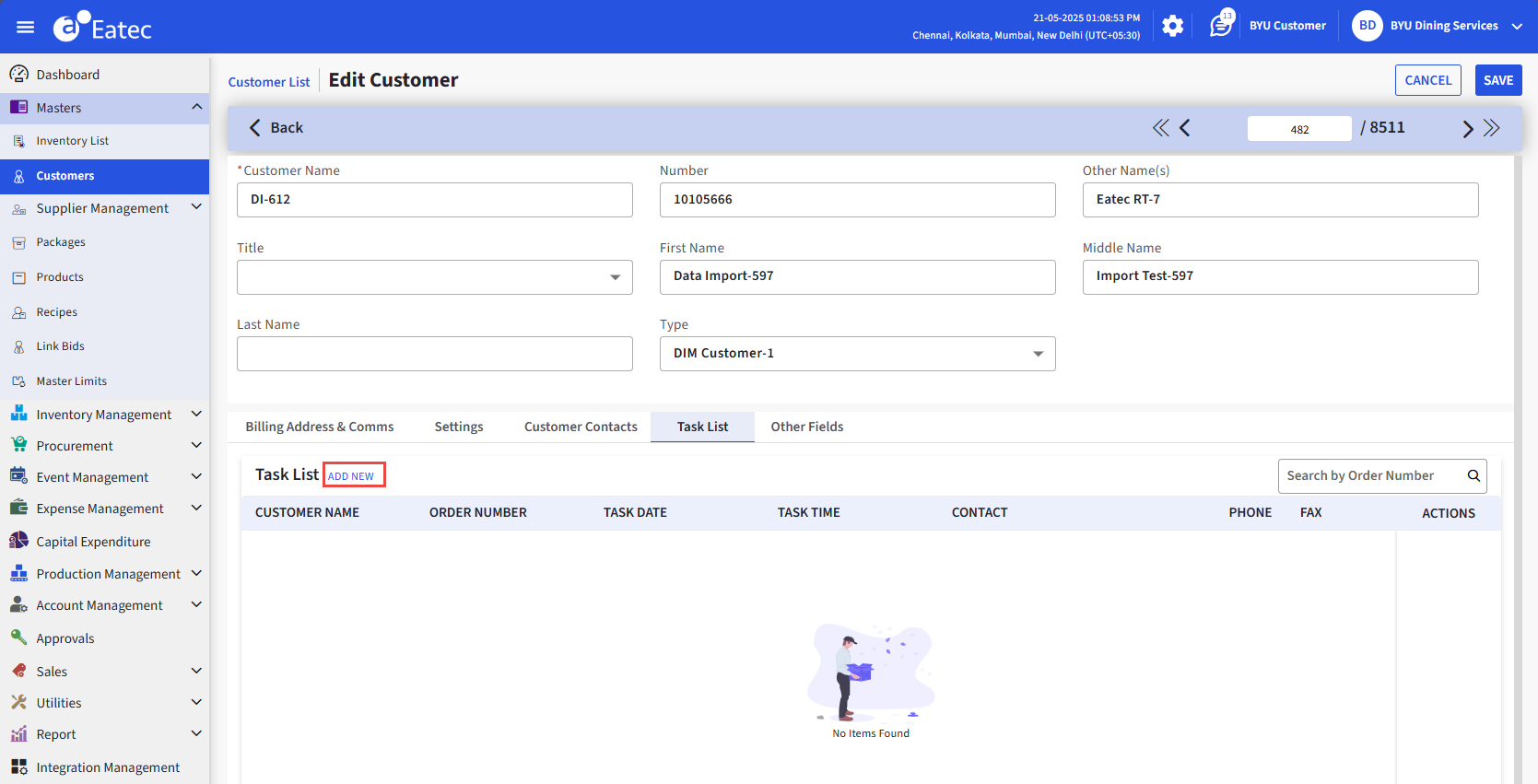
Click Add New. The following screen appears:
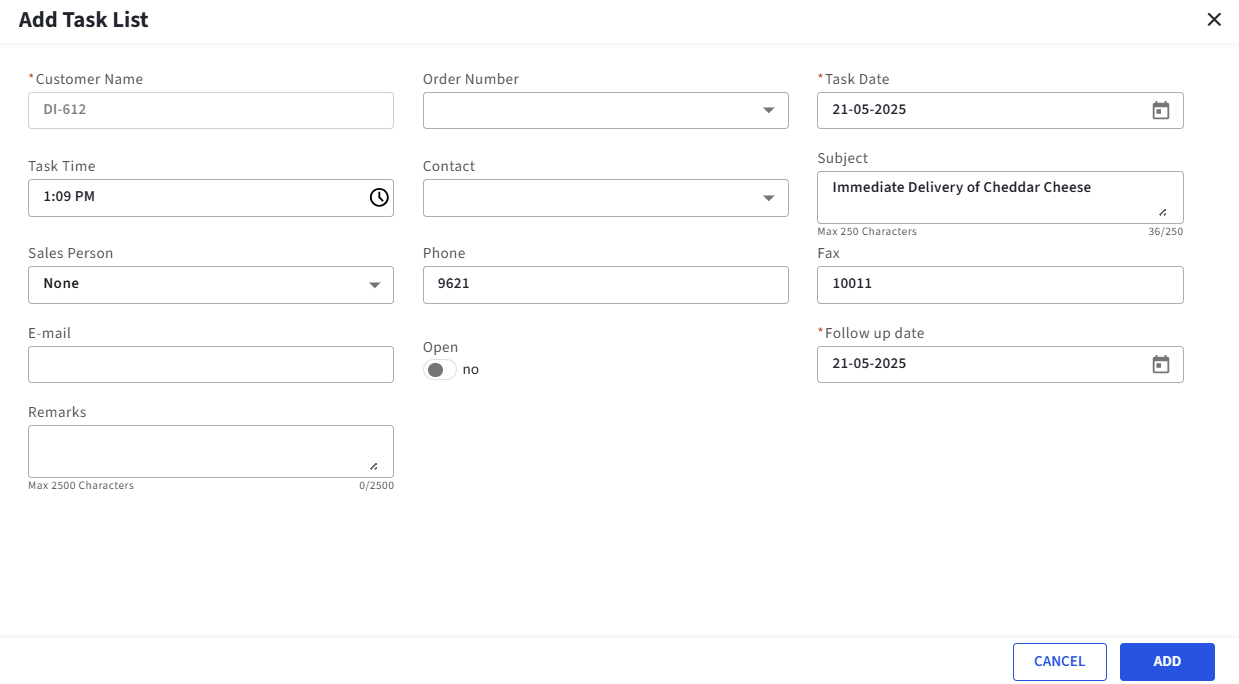
Refer to the following table and fill in the fields:
|
Field |
Description |
|---|---|
|
Customer |
View only field that displays the selected customer name. |
|
Order No. |
View only field that displays the order number. If no sales order is placed by the user, 0 will be displayed. |
|
Task Date |
Displays the current date and users can modify it as preferred. Order event date is displayed for sales orders. |
|
Task Time |
Displays the current time and users can modify it as preferred. Order guest arrival time is displayed for sales orders. |
|
Contact |
Select preferred customer contact. |
|
Subject |
Enter description for the task list. Maximum characters limit is set as 250. |
|
Sales Person |
Select the preferred sales person to whom the task must be assigned. |
|
Phone |
Phone number of the contact person selected in the Contact drop-down list. |
|
Fax |
Enter fax number if applicable. |
|
|
Displays the email id of the customer contact person. Users can modify the value as preferred. |
|
Open |
|
|
Follow up Date |
Displays the current date by default. Users can select preferred date to follow up. |
|
Remarks |
Enter comments in this field and the maximum characters limit is 250. |
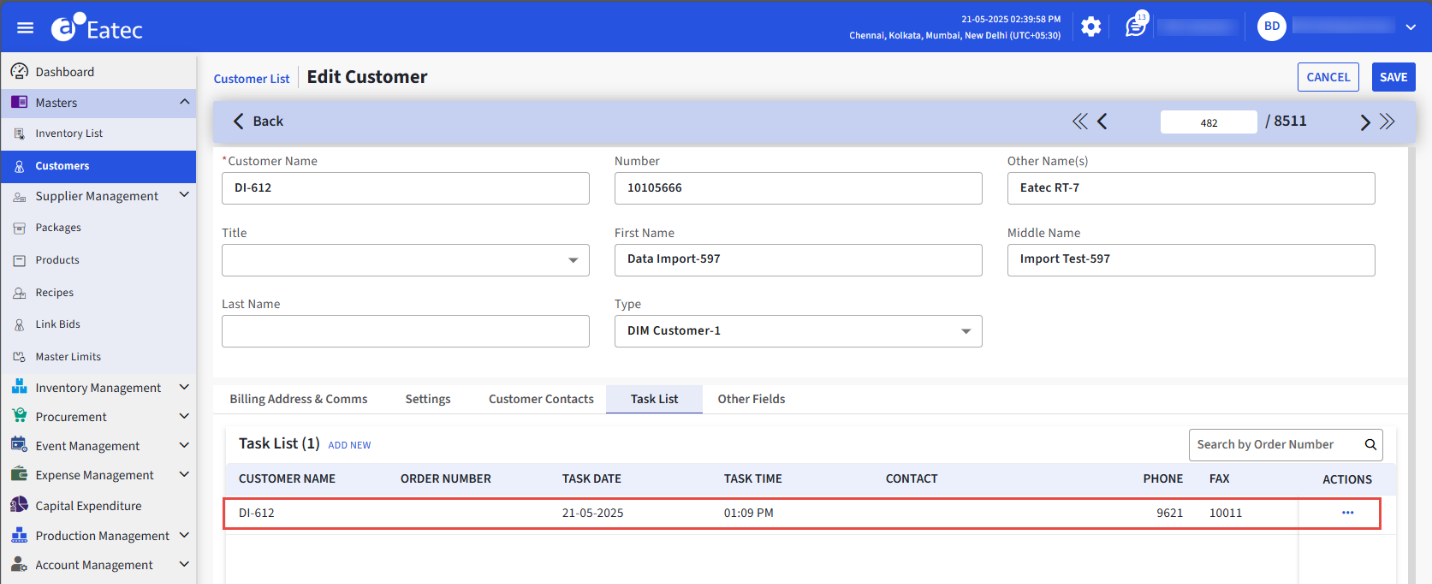
Click Add. The task will be created and will be displayed in the Task List tab of the Add Customer or Edit Customer screen as follows: