Differentiating UOM for Physical Inventory
Users are allowed to add / (front slash) in between the quantity count in the Quantity field to differentiate the units of measure (UOM) such as TU/BU/PU/RU while posting or modifying the counts/cycle counts for a physical inventory transaction.
To implement this feature, the following system preference must be enabled:
Log on to Eatec.
Click Setup ➜ System Preference ➜ Transactions Options.
Enable the Enable Inventory QTY entry with No Math (Units with Slash Character) checkbox.
Click Save.
Users can modify or enter the physical inventory count by performing the following steps:
Click Inventory Management ➜ Physical Inventory. The Physical Inventory page appears.
Click to open and modify the saved physical inventory. The Enter Counts page appears.
Click to expand Item List section.
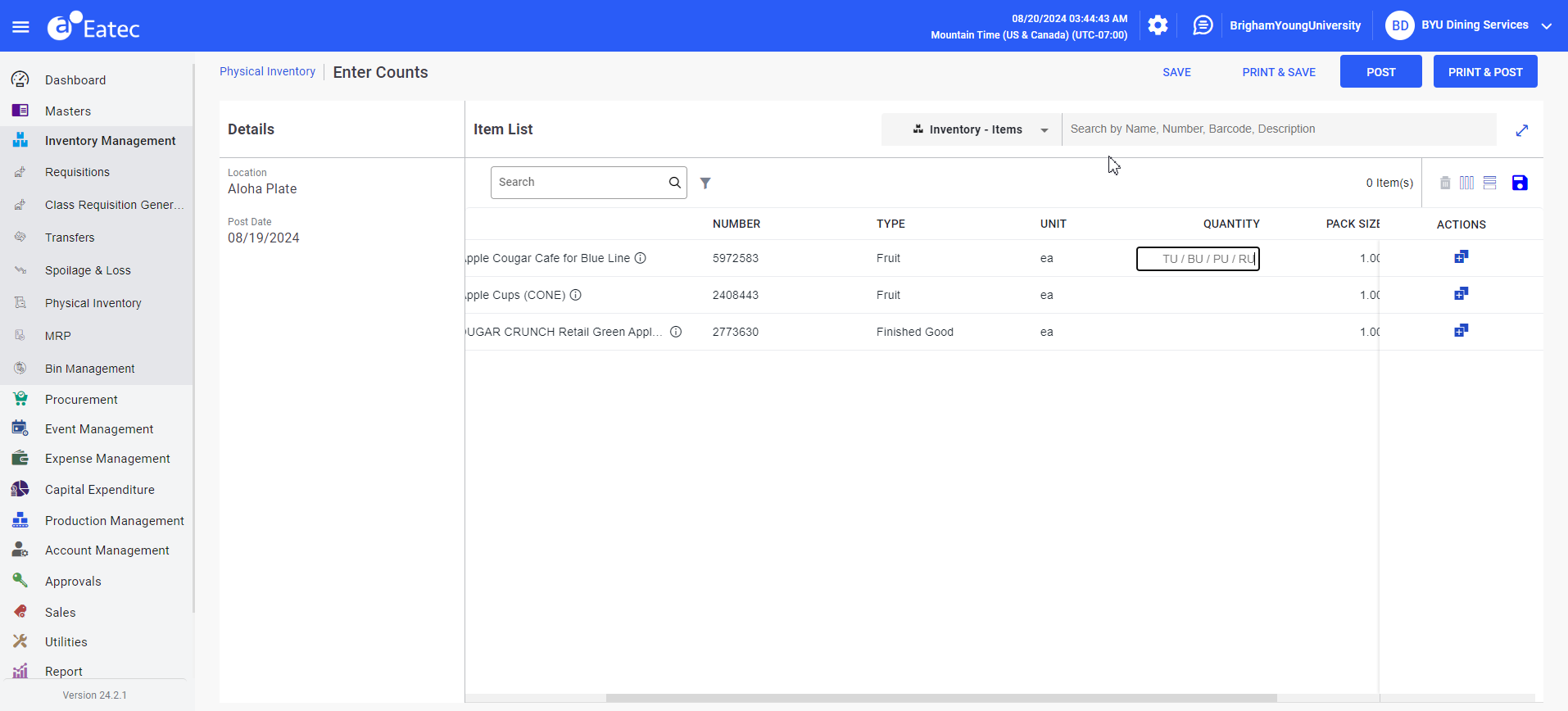
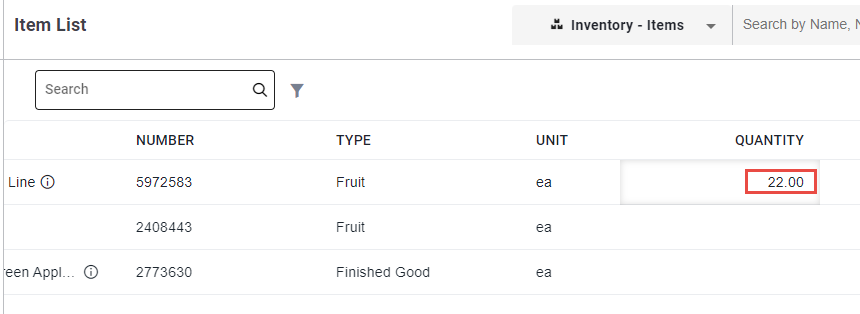
Enter values in the Quantity field corresponding to the item under Item List. For example, 5/6/8/3. The system calculates the quantity and converts the values based on the actual unit.
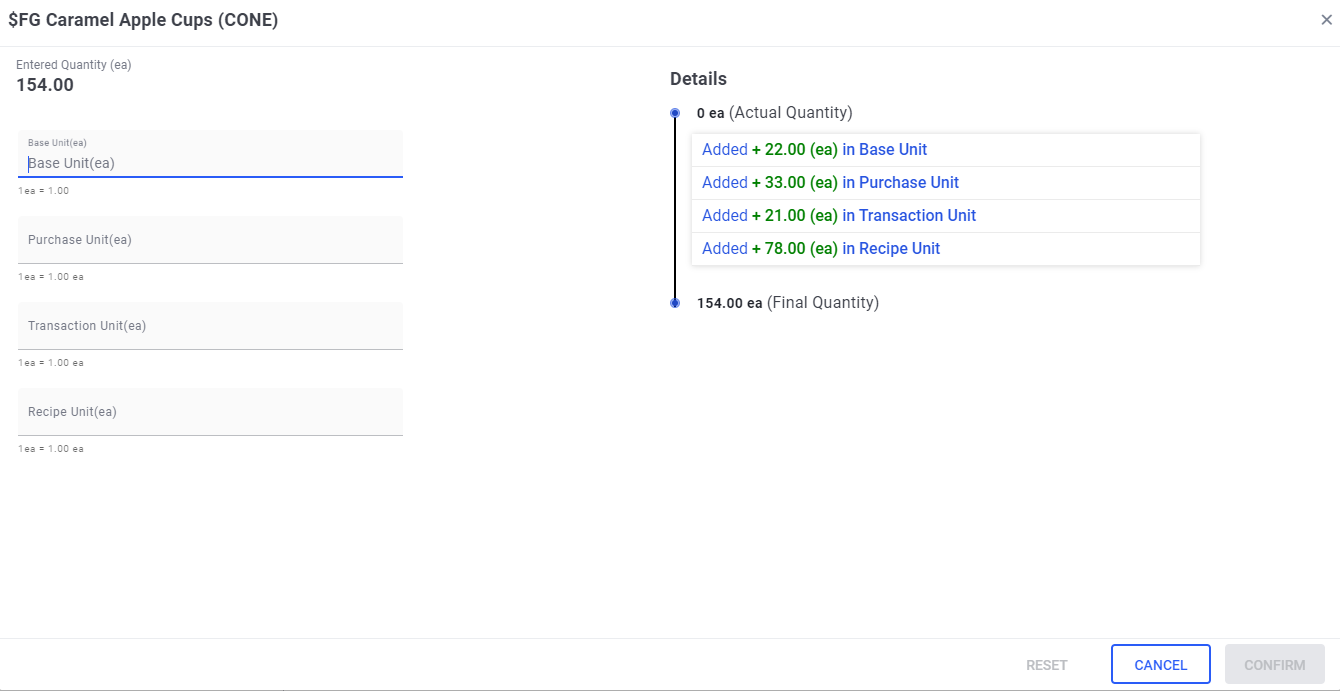
To see the actual quantity details for each unit of measure of the inventory item, click No Math under Actions corresponding to the item. The following pop-up appears.
Users are also allowed to skip by not providing a few UOMs in the Quantity field and add only preferred units.
For example, if the user wants to enter only the Transaction Unit (TU), then they must enter 2/ in the Quantity field. If the user wants to enter only the Base Unit (BU), then they must enter /5/ in the Quantity field.